
Benchmarks and throttle tests
Therbie on iPhone and iPad has two speed tests:
- Quick benchmark: how fast the device is right now, in real units such as GFLOPS (billions of calculations per second).
- Throttle test: how much of that speed the device keeps once it gets hot.
The Benchmark screen also has a Charger Test, which times how fast the battery fills.
To open the Benchmark screen, go to the Device tab and tap Run tests on the Benchmark card.
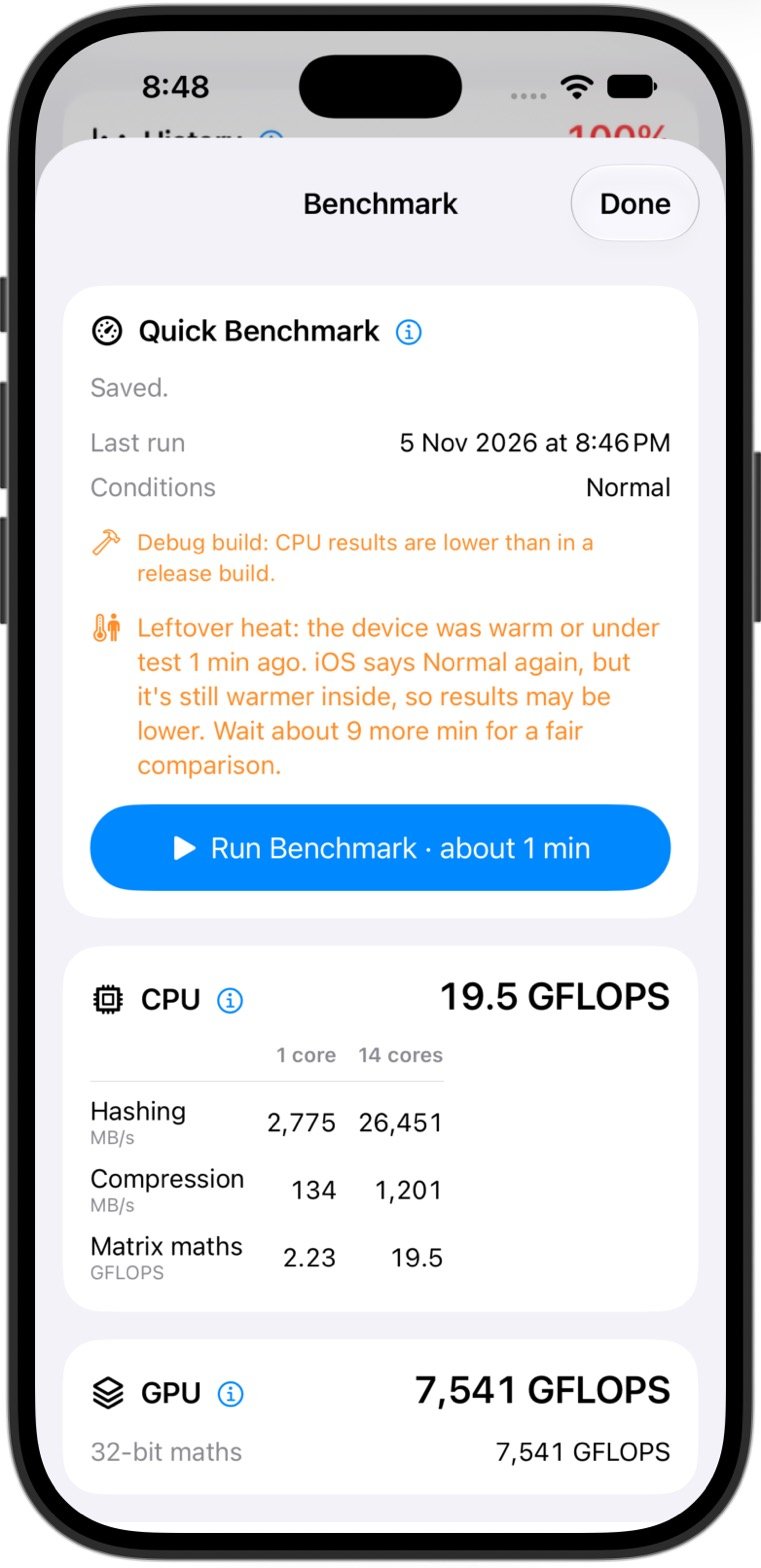
Run the quick benchmark
- Let the device cool down until the Thermal card says Normal.
- On the Benchmark screen, tap Run Benchmark · about 1 min.
- Keep Therbie on screen until it finishes. The screen stays on meanwhile. If you leave Therbie, the benchmark stops and its results aren't saved.
It measures eight things:
| Group | Test | Unit |
|---|---|---|
| CPU, one core and all cores | Matrix maths, hashing, compression | GFLOPS, MB/s |
| GPU | 32-bit maths | GFLOPS |
| Neural Engine and AI | Image classification | images/s |
| Language model, reading a long prompt; language model, writing an answer | tokens/s | |
| Memory and storage | Memory copy, storage write, storage read | GB/s, MB/s |
The two language-model tests use Apple's on-device model, so they need Apple Intelligence turned on. Elsewhere they show Not available on this device, or ask you to turn on Apple Intelligence.
Results are saved. Saved Runs lists every benchmark and throttle test.
Run a throttle test
The throttle test runs the CPU or the GPU flat out and takes a reading every 10 seconds: speed, thermal state, battery level and whether it's charging. The result is Kept % of peak: the average of the last 30 seconds divided by the best 10-second reading. 100% means the device never slowed down.
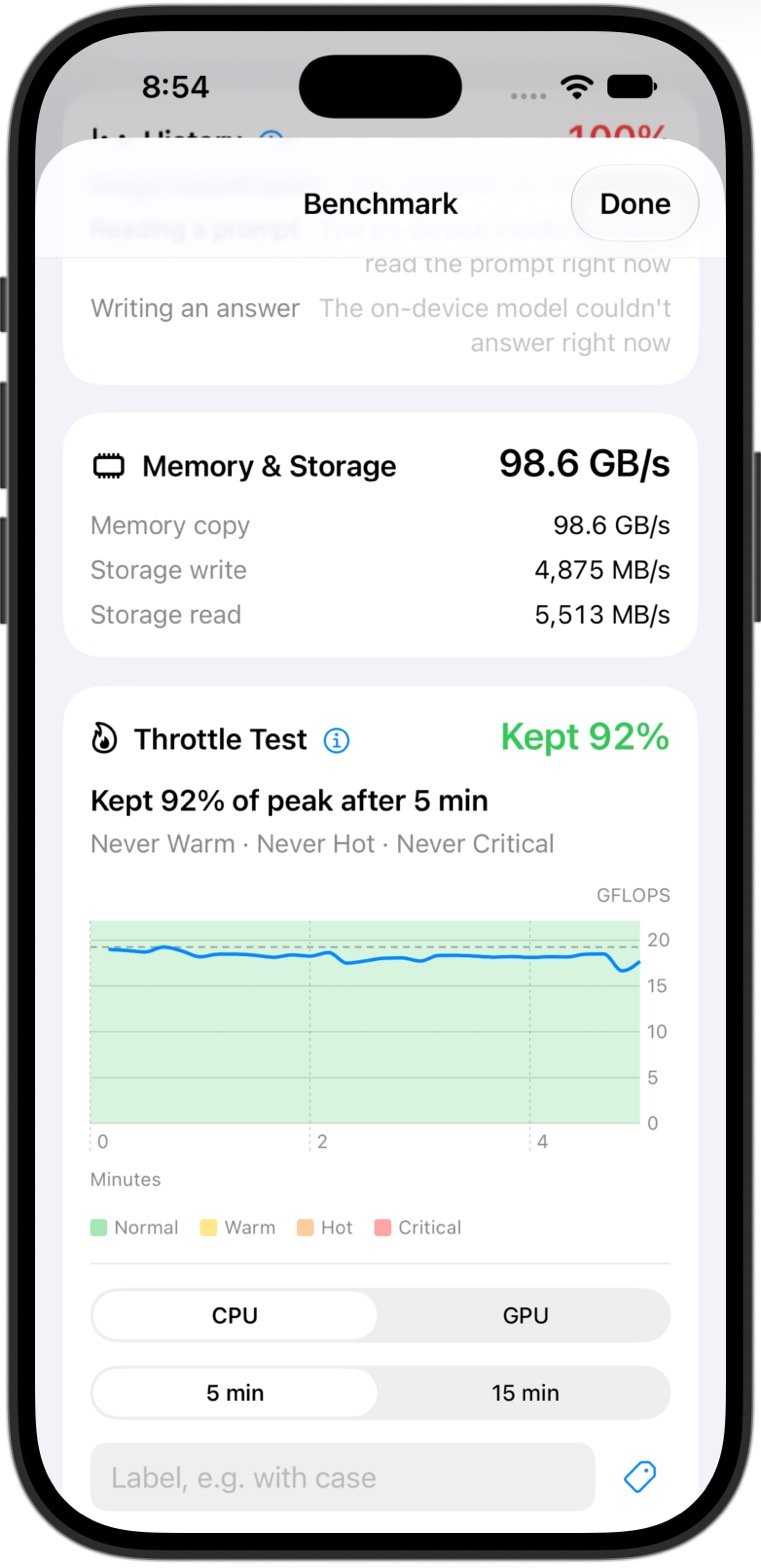
- On the Throttle Test card, choose CPU or GPU, and 5 min or 15 min.
- Add a label, such as With case or On a stand, so you can tell runs apart later.
- Tap Start 5-minute test (or Start 15-minute test) and keep Therbie on screen. The screen stays on during the test.
The test stops early in three cases:
- You leave Therbie. iOS doesn't allow the test in the background.
- The device reaches Critical. Therbie stops the test itself.
- The device is already at Critical. The test doesn't start.
Which length? Use 5 minutes for the CPU and 15 for the GPU. In the developer's tests on an iPhone 17 Pro, iPad Air and iPad mini, CPU speed settled within about 4 minutes. The GPU kept dipping and recovering for 10 to 15 minutes. How long should a throttle test be? has the numbers.
Important A throttle test warms the device and uses battery.
Compare runs fairly
Results depend on the room as much as the device.
- Start each run at Normal. If the device was Warm or under test in the last 10 minutes, a Leftover heat notice says how long to wait. iOS can report Normal before the inside has fully cooled.
- Keep the setup the same: charge state, screen brightness and position.
- Label every run, then compare two in Saved Runs › Compare Two Runs. You can show both as GFLOPS or as % of Peak.
- Low Power Mode lowers results. Therbie warns you when it's on.
- Debug builds installed from Xcode show lower CPU results and a Debug build note. The % kept isn't affected.
Charger Test
The Charger Test card times how fast the battery fills on a charger, cable or pad, in percentage points per hour.
- Type what you're testing, or tap a suggestion such as Cable, MagSafe or Wireless pad.
- Plug in, then tap Start. Until you plug in, the button reads Plug in to start.
- Keep Therbie on screen. The test needs at least two changes of battery level, which takes 10 to 30 minutes.
The card shows Time on charger, Battery, Charging speed and Level changes. Finished tests appear under Saved tests.
- Best range: start between 20% and 75%. Above 80%, iOS slows charging on purpose, and Therbie warns that the test will read slow.
- Speed bands, from the card's ⓘ: Fast is 90 %/h or more; standard is 50 to 90; slow is 25 to 50; very slow is under 25.
- Privacy: tests stay on the device.
On the Mac
Therbie for Mac collects benchmark and throttle results from your paired devices and compares them on one chart. It can also start tests on them. See Therbie for Mac and Testing devices from your Mac.