
Widgets, Lock Screen and StandBy
Therbie on iPhone and iPad has seven widgets and one Control Center control. Each widget shows when its reading was taken, so you can tell a fresh number from an old one.
The widgets
| Widget | Where and size | Shows |
|---|---|---|
| Therbie Rings | Home Screen: small, medium | CPU, memory, thermal state and battery as rings |
| Single Metric | Home Screen and StandBy: small | One reading in big numbers with a ring. Touch and hold, then Edit Widget, to choose CPU, memory, thermal, battery or storage |
| Therbie Bars | Home Screen: medium | CPU, memory, thermal state and battery as bars, with exact values |
| Therbie Dashboard | Home Screen: large | All four rings, plus the last hour of CPU load and thermal state |
| Therbie Gauge | Lock Screen: circular | One reading as a gauge. Touch and hold to choose which |
| Therbie Summary | Lock Screen: rectangular and inline | CPU, memory and thermal state, with the time of the reading |
| Your Mac | Home Screen: small, medium. Lock Screen: rectangular | Your Mac's CPU, memory, GPU and thermal state, as last received. See Mac Display |
To add one, touch and hold the Home Screen or Lock Screen, tap Edit (Home Screen) or Customise (Lock Screen), then Add Widget, and search for Therbie.
How often widgets update
iOS decides when widgets refresh. Therbie asks for a refresh every 15 minutes, but iOS spaces refreshes out to save battery, especially when the battery is low. Apple's WidgetKit documentation describes a widget that people look at often as getting about 40 to 70 refreshes a day, roughly every 15 to 60 minutes.
- Each refresh takes a fresh reading and saves it to History. That's how Therbie fills in a day's chart even when you don't open the app.
- Every widget shows when its reading was taken, for example Updated 3:41 PM. If iOS hasn't refreshed it for 30 minutes, the label changes to Updated 40 min ago in orange, so an old reading is obvious.
- Leaving Therbie refreshes all widgets, as long as iOS allows it.
StandBy
StandBy shows two small widgets side by side while an iPhone charges on its side, in landscape. Single Metric is made for it: in StandBy the background disappears and the ring and number fill the space. At night, StandBy turns everything red. The widgets never use colour as the only signal, so they still read clearly.
The Control Center control
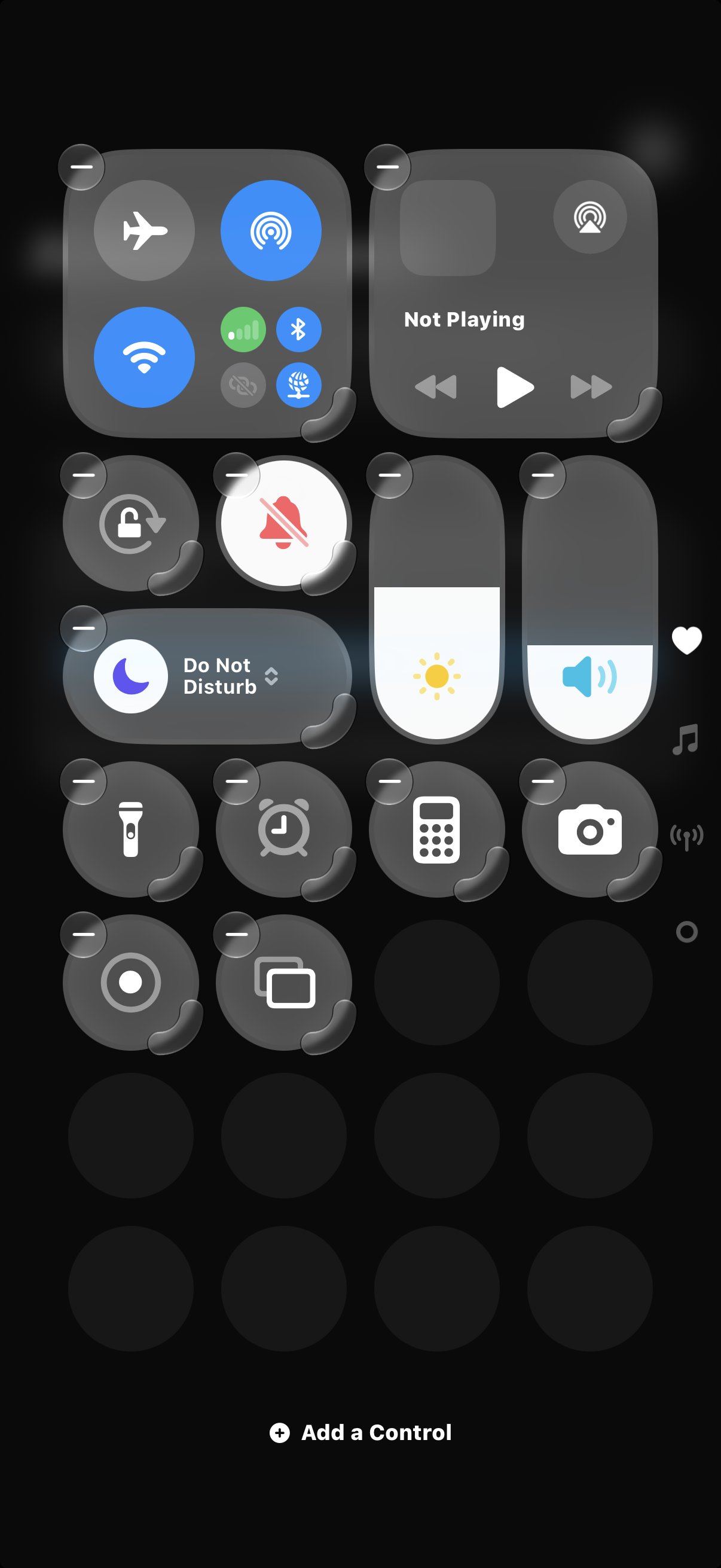
The Therbie control shows CPU and memory as a gauge icon, and opens Therbie when you tap it. At the smallest size, Control Center shows only the icon. The gauge follows CPU load, and a thermometer takes over when the device is Hot. Resize the control to the wider size to see the numbers, for example CPU 23% · Mem 61%.
To add it, open Control Center, tap +, then Add a Control, and choose Therbie.
Live Activities
Two Therbie features also show on the Lock Screen and in the Dynamic Island while they run. These are Live Activities, not widgets:
- the floating monitor;
- a recording trip, with Lap and Mark buttons. See Location and trips.
Turn them off in Settings › Therbie › Live Activities.